Two weeks into a femtech accelerator, the meetings started stacking up. So did the emails. They arrived in 4 Gmail accounts, split across 2 mail apps, and none of them talked to each other.
"My head was exploding because I have four inboxes."
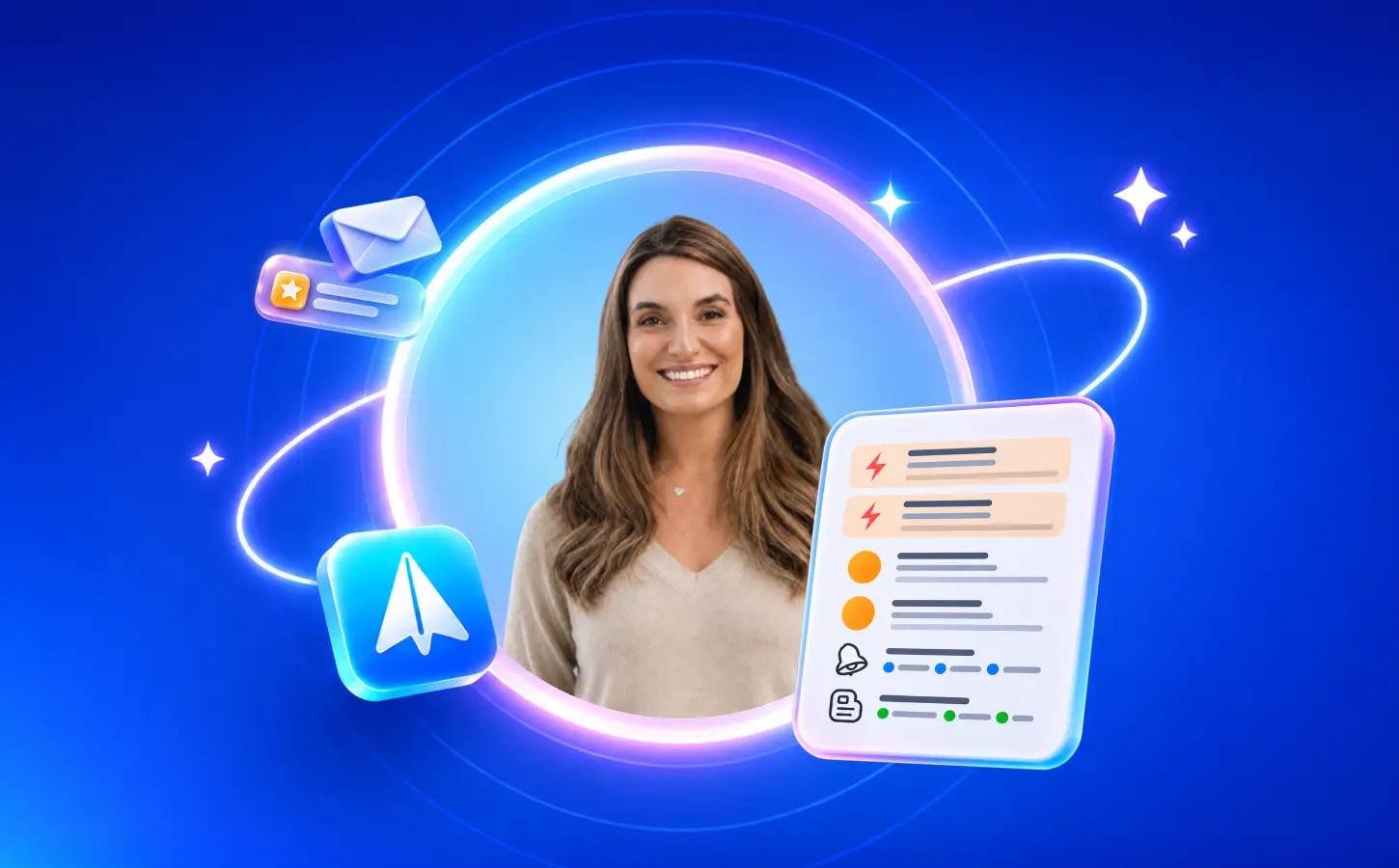
Dr. Claudia Pastides is a doctor-turned-health-tech founder. She's the co-founder and CEO of Pathem, and she hosts a femtech podcast.
“Pathem is a women’s health technology company using real-world data to understand how hormonal changes affect ADHD symptoms and treatment, enabling more personalized care.”
A few weeks after switching, Claudia posted about Spark on LinkedIn. We asked her how her setup works. Here's what she told us.
4 accounts, 2 apps, no single view
Each of Claudia's Gmail accounts has its own job. There's a personal address she's had for years, a newer personal one, one for her podcast, and one for her company.
Before Spark, she kept up with them by switching between the Gmail app and the iPhone Mail app.
"I was just splitting between them all, and it was just absolute chaos."
So she asked ChatGPT what she could do. It suggested Spark. Adding all four accounts was easy, and she now uses Spark on her Mac and iPhone.
"I managed easily to work out how to add all of my email addresses."
The people who come first
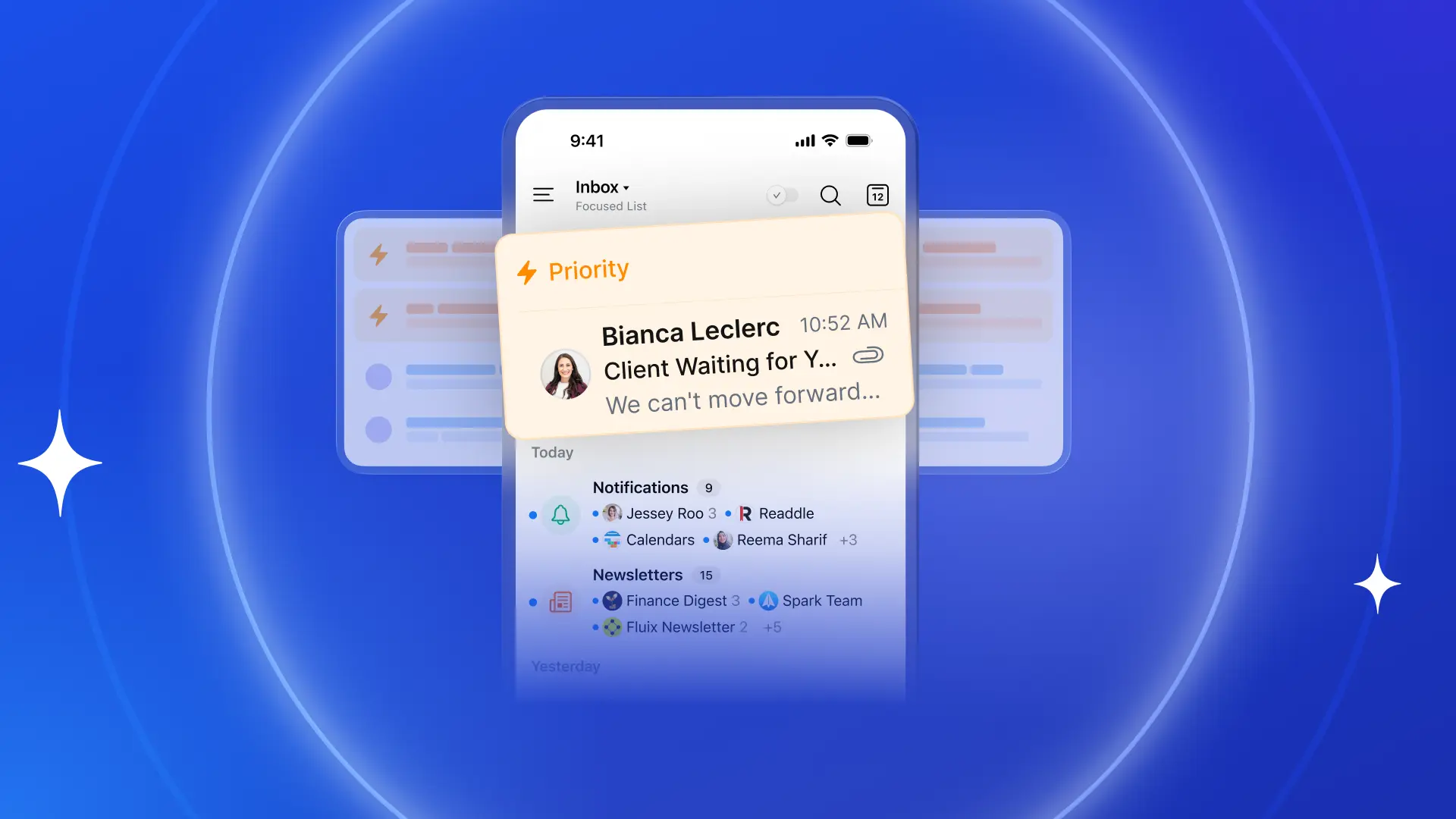
Claudia marks a short list of people as Priority senders: her co-founder, the venture studio she works with, and the clinicians on her project. Their emails always land at the top of her inbox.
"It means I can just not worry about all the other emails underneath until later. I know where to start."
A place for everything else
Below her Priority emails, Smart Inbox sorts the rest into groups. Claudia relies on three of them.
Notifications go to their own group. She rarely needs to read them, but she likes being able to look back and check what came in.
Newsletters wait for Friday. She's subscribed to a lot of them and reads them once the week's work is done. (More on Newsletters & Notifications.)
"I don't feel like they're cluttering up my inbox."
Invitations collect her meeting confirmations. She books a lot of meetings and shares her calendar often, so confirmations used to fill her view. Now she checks and accepts them in one place, without them "taking up my feed."
Meeting prep by asking
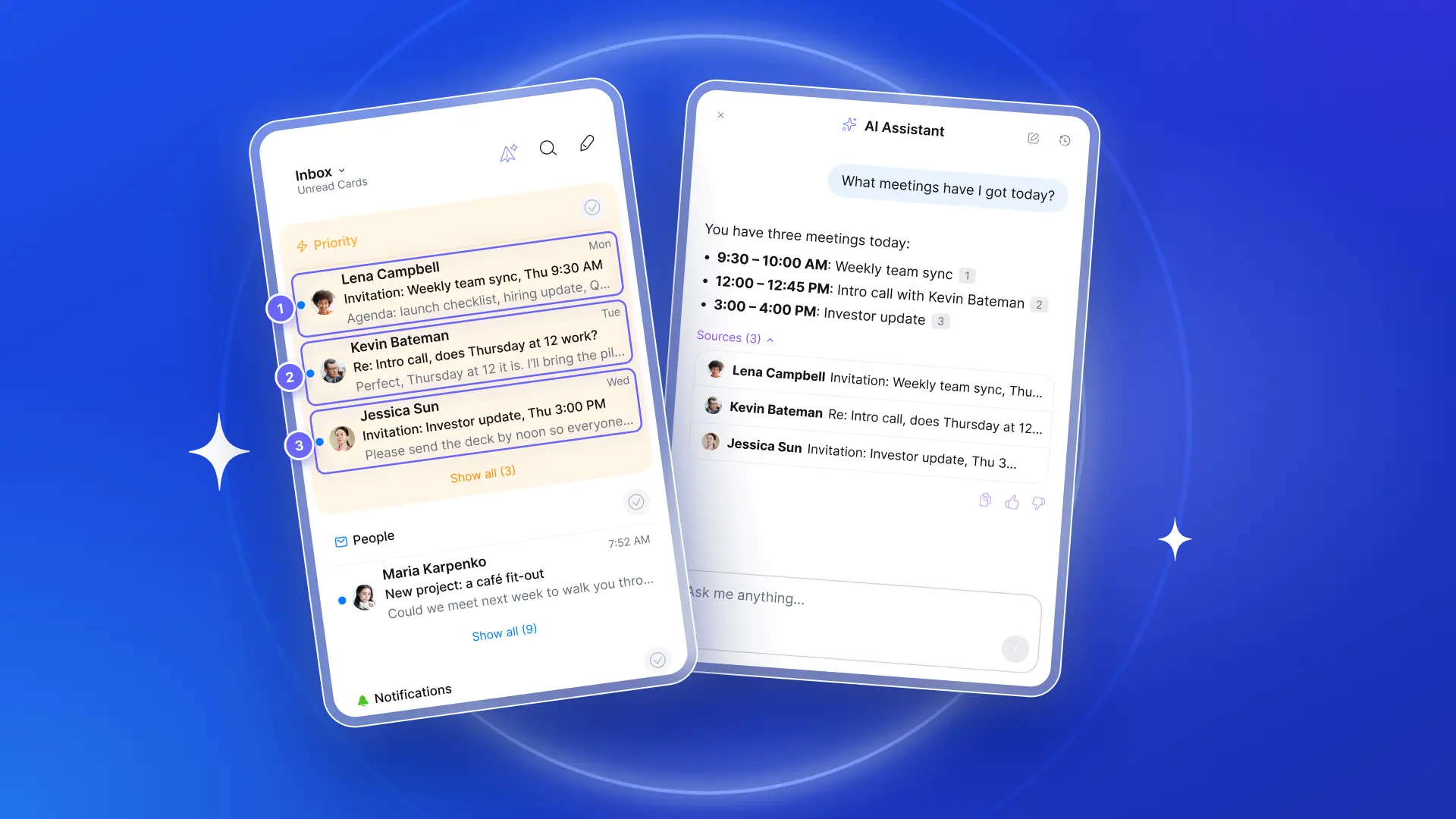
Claudia's favorite feature is the AI Assistant. Before a call, she asks what's coming up and pulls up the emails behind each meeting.
"I can ask it, 'What meeting have I got next? What meetings have I got today?' and pull up those emails that booked those meetings. So I can quickly work out what the meeting is going to be about and prepare for it."
She uses it for cleanup, too. In her LinkedIn post, she described asking it to unsubscribe her from several senders at once.
First drafts, she checks before sending
Claudia has also been using Auto-Drafts. When an email looks like it needs a reply, Spark writes a draft. It waits in her drafts until she reviews it and hits Send.
Some of her drafts are ready to go as they are. Others need some edits, which she finds super easy to make before she hits Send.
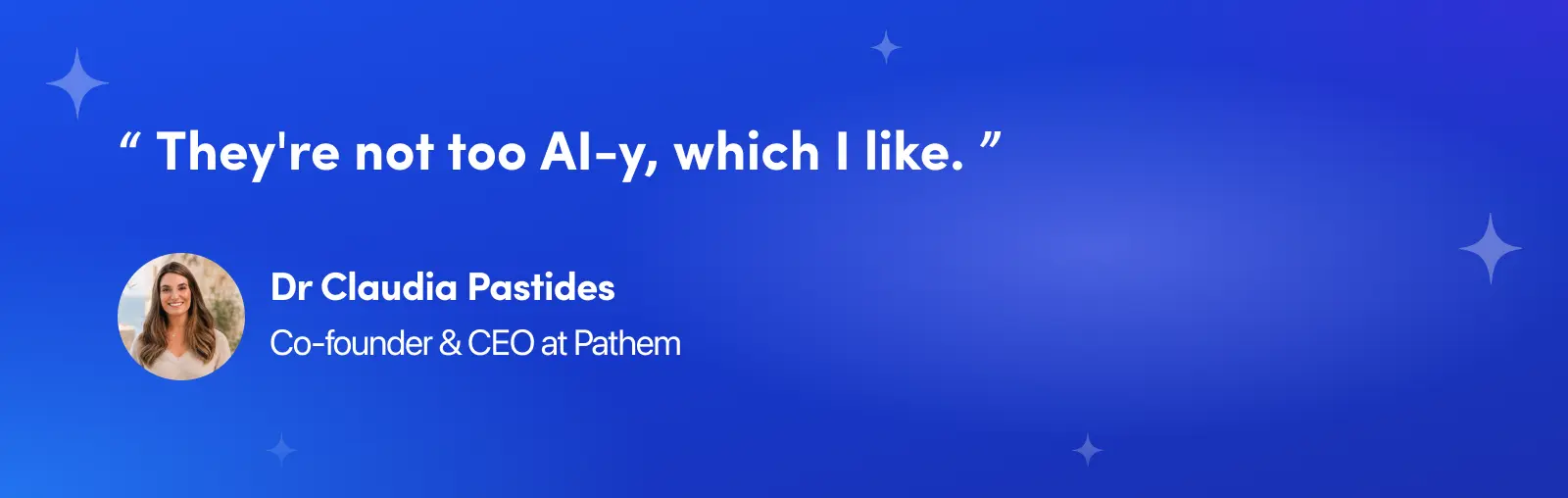
"I like that some of the Auto-Drafts give me options, depending on whether my answer is yes or no. And they're quite nicely written. They're not too AI-y, which I like."
The main benefit, in one word
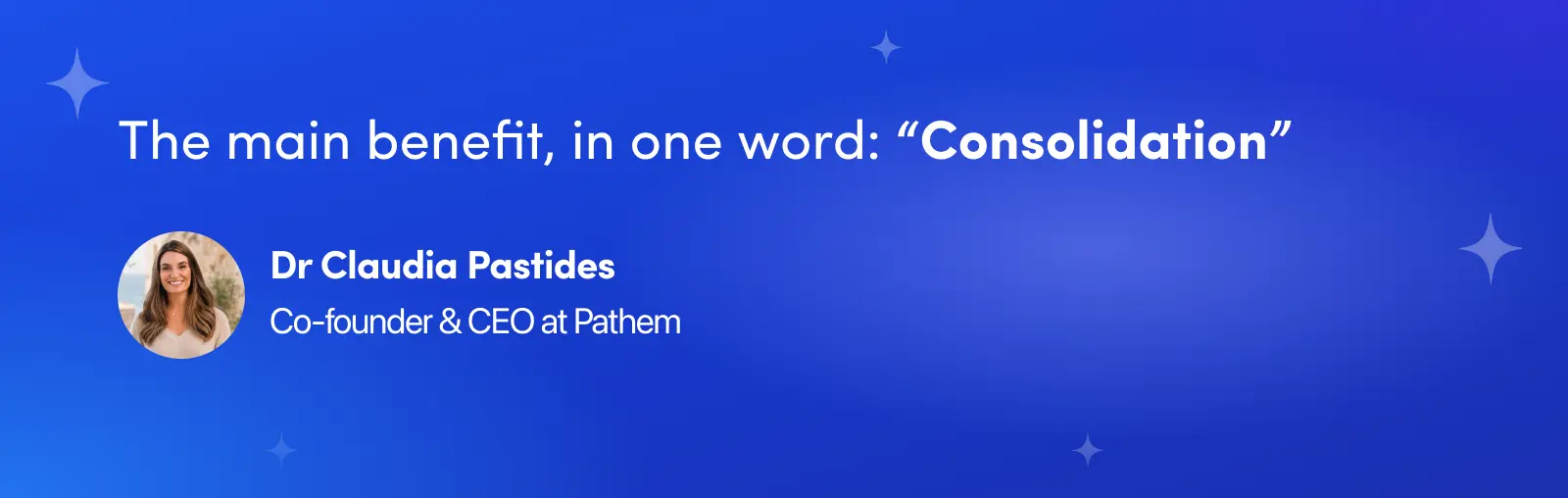
We asked Claudia what she gets most from Spark. Her answer: consolidation.
"It has stopped me from having to go from browser to browser and Gmail account to Gmail account. It's saved me a lot of time, but more than that, it's also saved me a lot of headspace."
For her, the difference is knowing what needs her and what doesn't.
"It's so clear what I need to do and reply to. Everything that I don't need to do or reply to is just information that sits somewhere else."
AI, on her terms
Claudia uses AI across her work. She's tried connecting an AI agent like Claude to her email, too, but it’s not her preferred setup for now. She prefers to keep her email and meetings in Spark and her AI tools separate.
"I quite like having them separate, and I don't know whether this is the millennial in me. I love LLMs, but to a point. I have a bit of a thing about having them integrated with my email."
Millennials, can you relate? For now, the AI built into Spark covers what she needs.
"The AI that I need for my emails and meetings, Spark, is doing enough of a level for me to not also need to plug everything in yet. This might change, but for now I'm happy."
How to implement Claudia's setup
- Add all your email accounts to Spark so they land in one inbox.
- Mark the few people who need you first as Priority senders.
- Let Smart Inbox send Notifications, Newsletters, and Invitations to their own groups. Read newsletters when you have time.
- Before a meeting, ask AI Assistant what's next and pull up the emails behind it. Try: "What meetings do I have today? Show me the emails about each one."
- Turn on Auto-Drafts, wake up and see your drafts waiting for you in emails that require a reply. Review them and send. It's part of Spark Pro.
Want to go further?
Claudia's setup covers the basics. If you want to go further, here's where to start.
- +AI Meeting Notes. Transcribe and summarize meetings in the same app as your email and calendar. [Optional: Claudia said she'd like to move her meeting notes into Spark.]
- Autopilot. Let Spark take care of inbox cleanup for you: archiving promos, filing invoices and delivery notifications, and labeling emails.
- Spark CLI. If you already use CLI’s and work with agents, this option is available in Spark as well. Connect the AI agent you already use, like Claude, Codex, or Cursor, to your email, calendar, contacts, and meeting notes in Spark. Read access is free on every plan. (Getting started guide)
One inbox for every account. The rest is up to you.
Download Spark