You can now add your Proton Mail account to Spark for Mac and Windows
You can now read and send your Proton Mail right inside Spark Desktop on Mac and Windows. Keep Proton's encryption, and get Spark's fast, focused inbox alongside your Gmail, Outlook, or work accounts.
Proton is often where your most sensitive email goes: contracts, client details, legal matters. But reading it means opening a separate app, apart from your Gmail or work account. You switch back and forth all day just to check one inbox, and an important reply can still wait longer than it should.
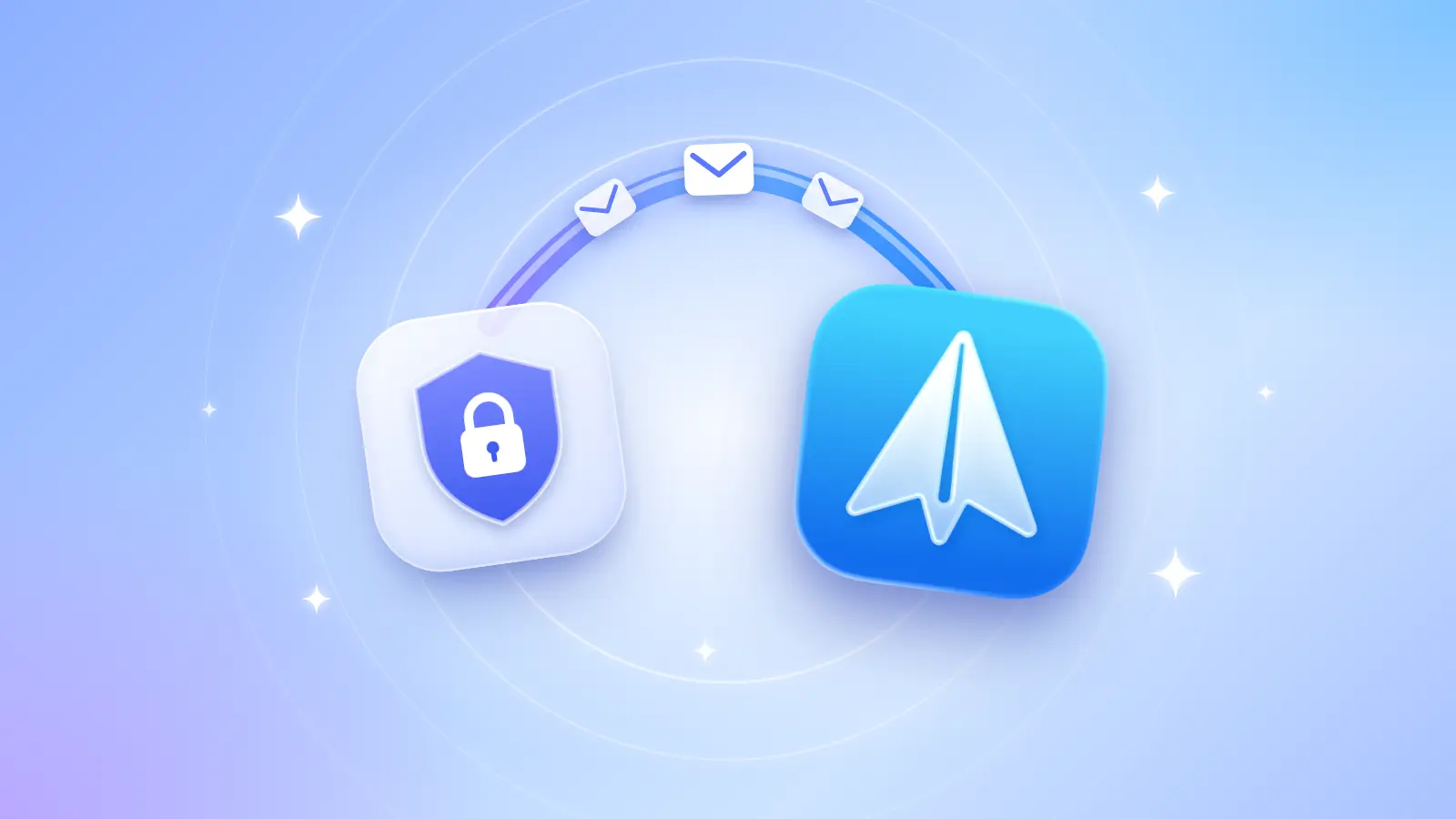
With Proton Mail Bridge, you can add your Proton account to Spark Desktop on Mac and Windows. It appears next to your other accounts, and Proton's encryption stays in place.
This guide walks you through it in about ten minutes and explains what to expect once you're connected.
Why Proton needs a bridge
Proton Mail encrypts your messages end to end, so a regular email app can't simply log in to Proton's servers. Proton Mail Bridge solves this. It runs on your computer, decrypts your mail locally, and offers it to Spark through standard IMAP and SMTP.
According to Proton, Bridge only talks to apps on the same computer, so your mailbox is never exposed to the internet.
Before you start, check that you have:
- A paid Proton plan, such as Mail Plus or Proton Unlimited. Bridge isn't available on Proton's free plan.
- Spark Desktop on macOS or Windows. Proton accounts aren't supported in Spark for iPhone, iPad, or Android. It may be visible on other platforms but will fail to sync.
- Your Proton login details and access to two-factor authentication, if you use it.
Important: Add Proton as an additional account, not as your Email for Sync (the email you use for your Spark account). If Proton is your Email for Sync, features that need Spark's servers will stop working for your other accounts too.
Step 1: Set up Proton Mail Bridge
- Download Bridge from proton.me/mail/bridge, install it, and sign in to your Proton account.
- In Bridge, open your account and find the mailbox details (the IMAP and SMTP settings).
- Keep this window open. You'll copy these details into Spark in the next step.
Important: Spark needs the password that Bridge generates, not your Proton account password. Your Proton password won't work in Spark.
Step 2: Add your Proton account to Spark
- In Spark, click Spark (or the menu icon on Windows) > Add an account.
- Enter the account address, and the Set up manually window will open.
- Click Additional settings and fill in the details, including the servers from Bridge (see the table below).
- Click Log in.
- Spark shows a security certificate message for your email address. This is expected: Bridge uses its own certificate to secure the connection on your computer. Click Trust without Certificate.
|
Setting |
Inbox server (IMAP) |
Outbox server (SMTP) |
|
Server |
127.0.0.1 |
127.0.0.1 |
|
Port |
1143 (or the port Bridge shows) |
1025 (or the port Bridge shows) |
|
Protection |
STARTTLS |
STARTTLS |
|
Username |
The username from Bridge |
The username from Bridge |
That's it. Your Proton Mail account is now in Spark, right next to your other inboxes. Check out our help documentation for more information.
What to expect after adding the account
Keep Bridge running. Spark sends and receives your Proton Mail through Bridge. If Bridge is closed, Spark can't sync new email or send from this account. Bridge launches at startup by default, so leave that on.
You'll see two account warnings, and that's normal. Your account stays added, and your mail keeps syncing:
- Account warning: insecure connection. This appears because you trusted Bridge's certificate. The connection between Spark and Bridge never leaves your computer. Clicking Check again won't clear it.
- Verification problem. This appears because Spark's servers can't reach Bridge on your computer. Reconnect won't clear it either, and you can safely ignore it.
Is this right for you?
This setup works well if you mainly read and answer Proton Mail on your computer, and you want it in the same place as your other accounts.
Reading, organizing, and sending email all work as they normally do in Spark. Smart Inbox still sorts your Proton mail into personal, newsletters, and notifications. Smart Search works too. By default, it searches your Inbox and Archive. To search another folder, add the folder name to your search.
It is a weaker fit if you need these things for your Proton account:
- Your phone. Proton mail appears only in Spark Desktop, on the computer where Bridge runs. It does not sync to Spark on iPhone, iPad, Android, or your other computers.
- Mail when your computer is off. Spark gets Proton mail through Bridge. If your computer is asleep or Bridge is closed, new Proton mail does not reach Spark.
- Important messages at the top. Priority, Gatekeeper, and Group by Sender do not work for this account. Spark will not separate important senders from the rest.
- Smart alerts. Smart Notifications and other server-side push notifications do not work. You will not get Spark's alerts for important Proton mail.
- Follow-ups and reminders. Snooze, Reminders and Set Aside do not work for this account.
- AI features. Email summaries, AI Assistant, Writing Assistant, and other Spark +AI features do not work for this account.
- Scheduling and muting. You cannot schedule Proton emails with Send Later, or mute threads that are no longer relevant.
- Working with your team. You cannot share Proton emails or drafts, delegate them, share them via link, or use them in a Shared Inbox.
The reason is the same for all of these. These features need Spark's servers to connect to your account. Bridge does not allow that, by design. For many Proton users, that is the point.
FAQ
Can I use a free Proton account?
No. Bridge needs a paid Proton plan, and Spark connects to Proton only through Bridge.
Do Spark's AI features work on my Proton mail?
Yes, most AI features work, including AI Translate, AI Summary, and AI Assistant. Auto-Drafts and Autopilot are not supported.
Does adding Proton change anything for my other accounts?
Not if you add Proton as an additional account. If you use your Proton address as your main Spark account email, features that need Spark's servers stop working for all your accounts. Use a different address for your Spark account.
Can I add more than one Proton address?
Yes. Sign each account in to Bridge. Then add each one to Spark with its own mailbox details.
Will my Proton mail show in Spark on my phone?
Not currently. Proton accounts work only in Spark Desktop, on the computer that runs Bridge. It may be displayed as an added account on your phone but will not sync emails.
Why does Spark say my connection is insecure?
Because you trusted Bridge's own certificate during setup. The connection between Spark and Bridge stays on your computer. The warning is expected and safe to leave.
Privacy and productivity no longer have to live in separate apps. Download Spark, connect Bridge, and bring your Proton inbox into one calm, organized place.
 The Spark Team