Monday morning. Forty-seven new emails. You spend twenty minutes sorting them into folders, flagging priorities, color-coding. You’re the email triage champ. But then you look up and realize: nothing’s actually done yet. Sure, everything is organized, but you haven't replied to a single client.
Worse, an urgent request sitting at number thirty-four? It's been waiting since Friday. Meanwhile you've categorized twelve newsletters and eight CC'd threads that resolved hours ago.
You’ve been triaging the wrong things.
Email triage as emergency room triage doesn't work
Most email triage examples take inspiration from emergency medicine. Sort by urgency. Categorize by importance. Process systematically. It sounds smart, but it misses something fundamental.
Emergency rooms triage who to treat first. Every patient needs care. The question is sequencing.
Email triage isn't that. Most messages in your inbox don't need your attention at all. They need to be ignored. McKinsey found that professionals spend roughly 28 percent of their workweek on email and for inbox-dependent roles like support or sales, where volumes exceed one hundred messages a day, it’s higher. A significant share require zero action from you. The CC'd thread where someone already answered. The notification you glance at and forget. The FYI update that demands nothing.
Standard triage treats every one of those messages as worthy of categorization. That's a real waste.
The question that actually tells you how to email triage
Traditional triage asks: What category does this belong in?
The better question: Does this need a response from me?
This matters most for people judged on responsiveness — support managers, sales reps, account managers. Nobody cares how organized your inbox looks. They care whether the right people got the right replies at the right time.
So before sorting anything, filter what you’ve got. Every email falls into one of three buckets:
- Needs my response. A client question only I can answer. A deal-specific ask directed at me.
- Needs a response, but not mine. Someone else is handling it, or it's not my responsibility.
- Needs no response at all. Notifications, resolved threads, FYI messages.
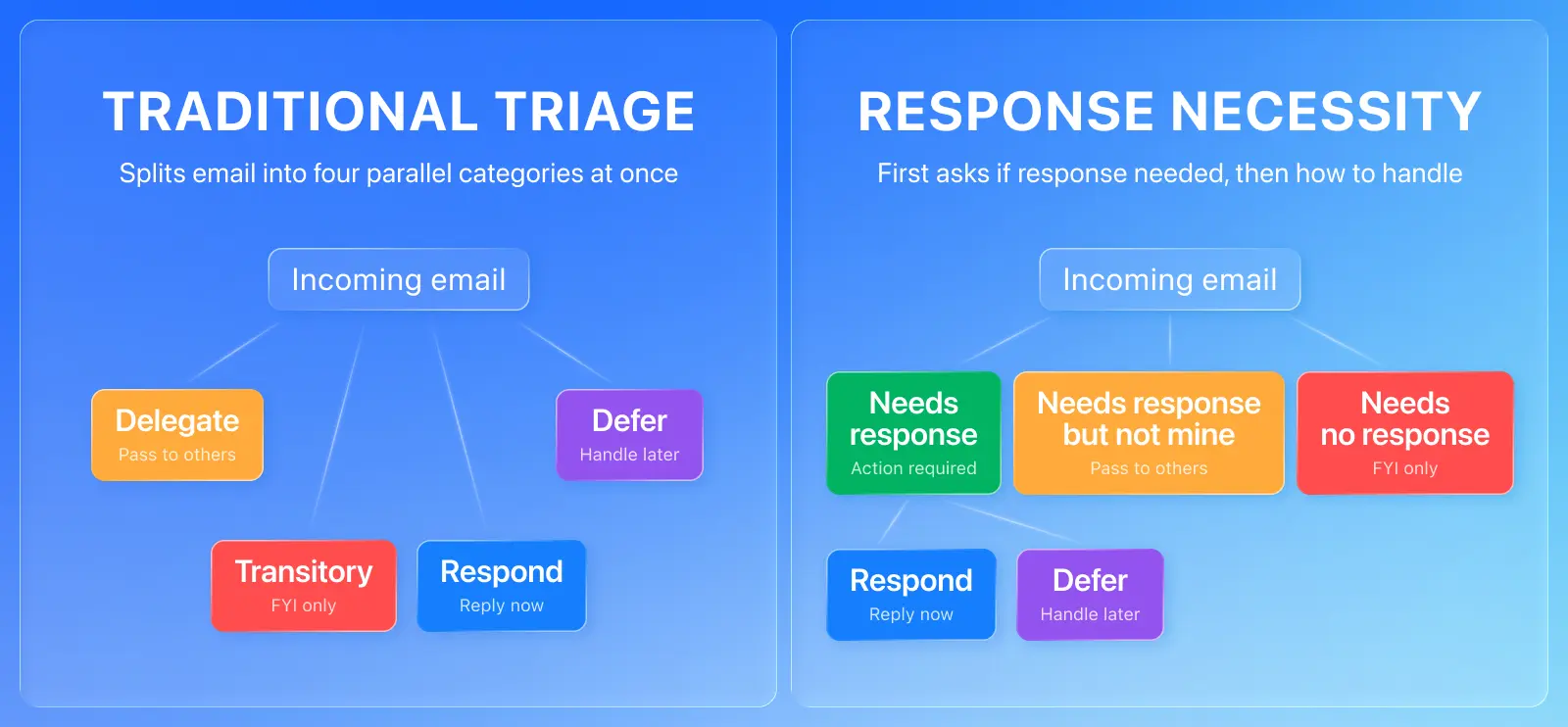
Most triage systems skip this filter and jump straight to organizing. That's like an ER doctor charting vitals on someone who walked into the wrong building.
Three filters, in order
As an example, imagine five emails in your inbox:
- A CC’d thread where your colleague already responded
- A LinkedIn notification
- A client asking for updated pricing
- Unsolicited cold outreach
- A prospect following up on a proposal
Now work through the email triage system by going in order.
Filter 1: Response necessity
First, ask: Does this require a response from me specifically?
Signs it’s a "no": you're CC'd and someone already replied, it's a newsletter or automated report, it's an internal thread that resolved while you were offline, or it's a notification you'd only glance at.
If the answer is no, either archive it immediately or mute the thread. Don't categorize it. Don't flag it. Just move it out.
Of the five emails sitting in your imaginary inbox, three of them — the CC'd thread, the notification, the cold outreach — require zero response. Archive them or mute the thread. You've just cut your triage workload by 60 percent.
Even better: If your email app has something like Spark’s Gatekeeper, you can screen unknown senders the first time they reach out, so persistent cold outreach never requires your time again.
Filter 2: Response timing
Now you're working with fewer emails — only the ones that need you. So the question becomes, Does this need a reply now, or later?
What to address now: the client is waiting, the request is time-sensitive, or it takes under two minutes. The pricing question in your imaginary inbox? Do it now. It probably meets the two-minute rule.
Respond later if an email needs a thoughtful reply, you're waiting on information, or it requires research. In this example, maybe the prospect following up on a proposal asked a technical question you can’t answer off the top of your head. Move it to a "respond later" holding area and come back to it.
Filter 3: Traditional triage
This is where most triage advice starts. But for you, it’s only for your "later" pile — and only if you need it. Flag by project, set a reminder, categorize however you like. In Spark you can snooze it so it reappears when you’re ready. The point is applying this effort to a fraction of your inbox instead of the whole thing.
Why this email triage system saves time (and sanity)
If 60 percent of your emails need no response, you've just eliminated 60 percent of your triage decisions. That's not just a time savings. It's a cognitive load reduction. Every email you categorize is a micro-decision. Fewer decisions mean sharper attention for the replies that matter.
Traditional triage on a 50-email inbox means fifty categorization decisions. Response-necessity triage means about twenty — with the other thirty archived in a quick pass.
What this looks like by role
Support manager: Your team inbox is full of threads. Most are already handled by colleagues. Your real triage is spotting unanswered customer questions — everything else you archive-on-sight.
Sales rep: You're CC'd on half the threads in every active deal. Your triage is separating direct client questions from FYI updates you don't need to touch.
Account manager: Multiple client threads. Your filter is simple: is the client talking to me, or is this an internal thread that's already moving?
Tools that automate this first filter — like Smart Inbox, which separates real messages from notifications, or priority flags for key contacts — aren't organizing your email. They're answering the right questions before you even open the thread.
Stop organizing. Start filtering.
Most email triage advice assumes every message deserves your attention. For inbox-dependent work, that’s a problem. The majority of your email doesn't need processing — it needs dismissing.
Achieving inbox zero was never about touching every message. It's about recognizing which ones don't need your touch at all.
 The Readdle Team